The Title Bar
Your status hub at the top of the app. It displays the name of the dice table you are currently participating in, a count of nearby players, and your global player display name.
Tap the table name, initially Public Square, on the left to manage your dice table and its players.
Tap your player name, or the gear icon, to open up the app settings. In there you'll find the visual customizations for the app.

The Dice Box
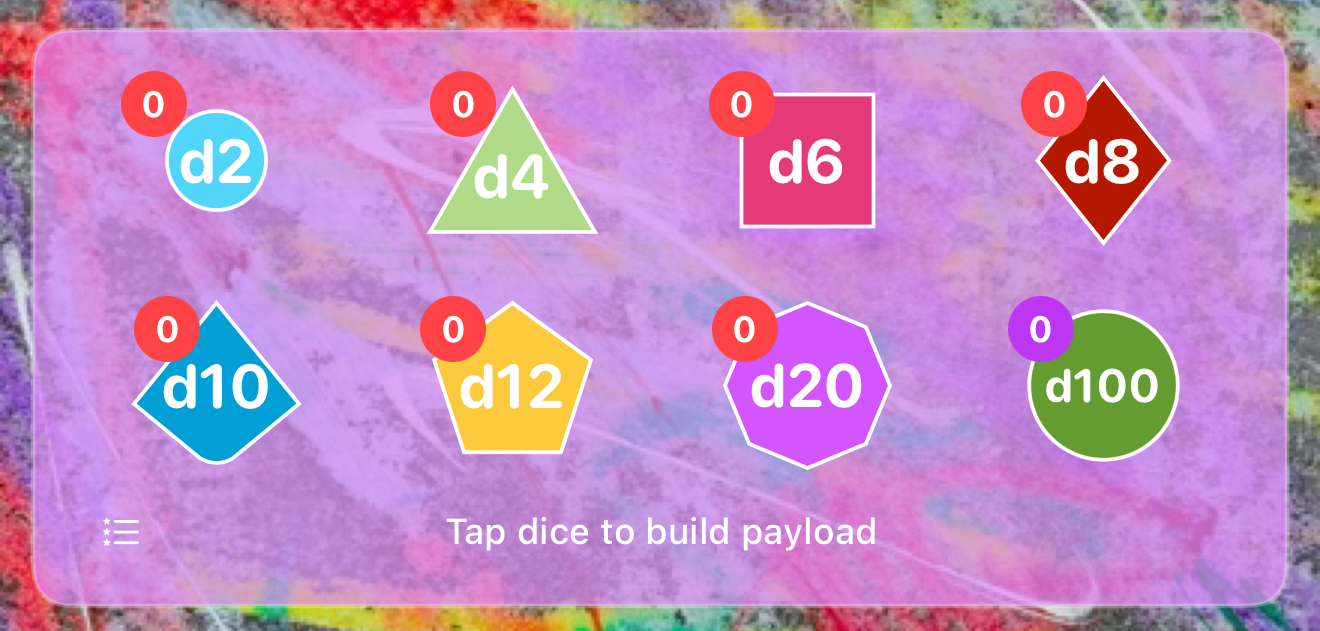
The launching pad for your rolls. Tap individual die icons to quickly add one to your temporary payload, or double-tap to instantly add ten dice at once. Need to drop a die? A long-press on a die removes one from its count. A swift horizontal swipe sweeps the box clear to start from scratch. Once your payload is ready, drag downward vertically anywhere on the box field to execute the dice roll.
Access Saved Dice Rolls by pressing the hamburger icon on the lower left side of the dice box, or long-pressing on the box, not on a die. Saved Dice Rolls let you preconfigure and name your dice rolls. They include various kinds of mutators to customized your dice rolls.
The Dice Tray
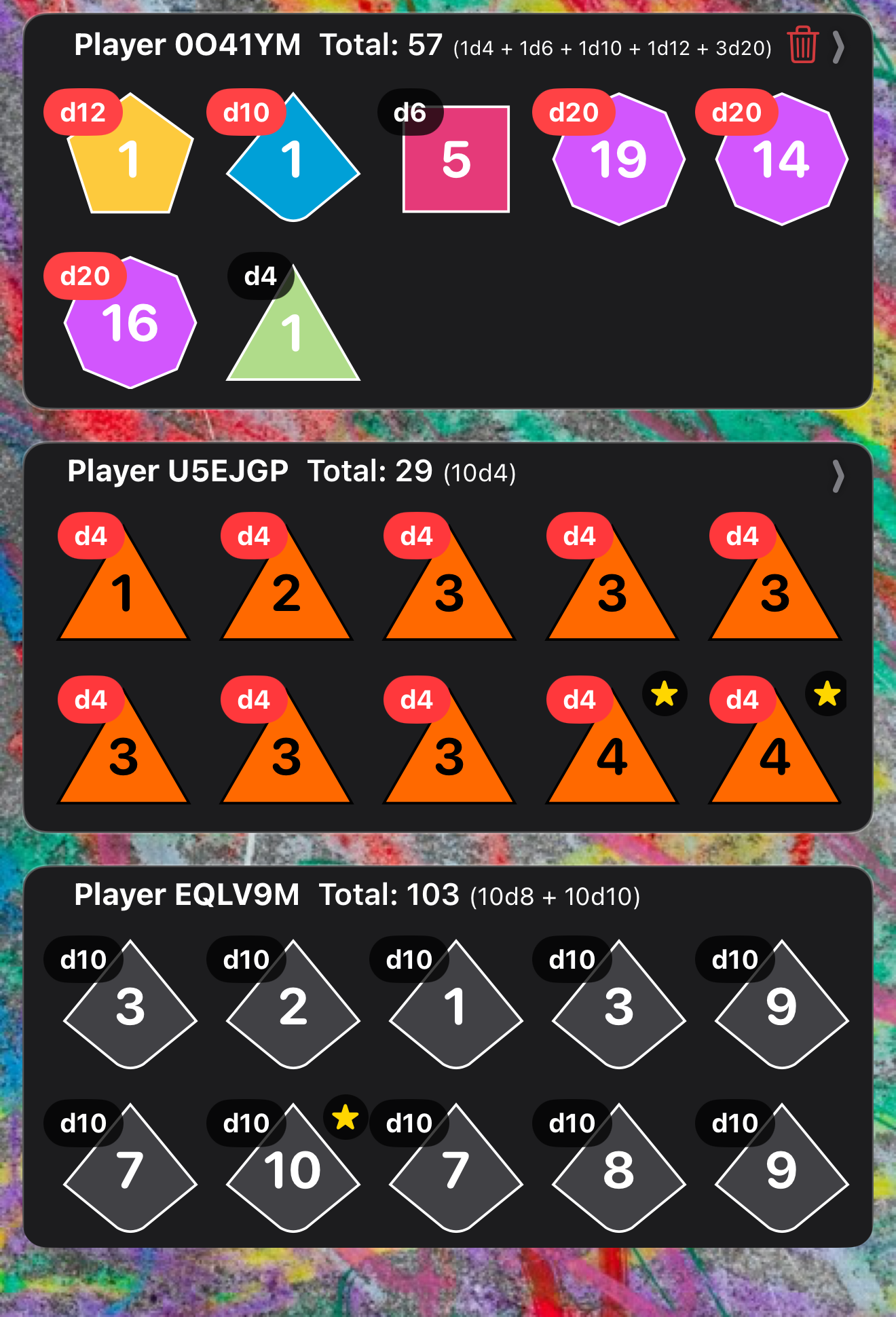
Your real-time, die rolling, landscape. The communal tray shows active, animated rolling loops as your table mates cast their pools. Dropped results from Advantage or Disadvantage filters are cleanly struck out, while high-value criticals and recursive exploding dice outcomes are tagged with distinct icon stamps so the entire room can track the moment.
Swipe left or right on a dice roll to see the history of dice rolls for that player. Players can delete dice rolls by pressing the red trash icon. Careful, it does not ask for confirmation! The title for the dice roll shows you what the dice roll configuration was when it was rolled.
Premium Features
🎨 Visual Customization
Express yourself! Adjust the number of dice per row to fit your visual needs. Pick your color choices for each die type, include face color, border color, text color, and badge color. You see dice rolls at the size you selected, but with other player's color choices. Beware of FOMO!
💾 Saved Configurations
Construct complex dice rolls for your signature abilities. Save recurring dice roll configurations that include modifiers, rerolls, exploding dice, advantage/disadvantage, etc. Don't see what you need? Drop a review into the App Store and let me know what's missing.
📜 Dice Roll Histories
Review the historical log of the game. Scroll horizontally through player-grouped timelines to audit dice rolls or relive exciting moments, all without cluttering the screen.
How Dice Tables Work
By default, you start out rolling in the **Public Square**—a shared local space where anyone sitting near you can see your rolls. To play a dedicated campaign session, Premium hosts can move their party onto their private dice table, with full control over who can be there:
Opening your table advertises across the local mesh network space. While your table is open, other players will see it as available to join.
Nearby players who join your dice table will only see rolls from other players at your dice table. Rolls will be isolated from the Public Space.
Once your entire adventuring party has checked in, toggle the dice table's lock. Once locked, your table will disappear from discovery, so no one else can interrupt your game.
After you lock your table, you gain the ability to rename your table, yourself, and all the players at your table. As a Game Master, you can customize your dice table to your gaming session.
Frequently Asked Questions
Why did the app automatically generate a name for me?
The other reason is to prevent social attacks using player names. It is unfortunate we have to account for this behavior, but we do. That is why everyone is given a generated name. There is an exception to this...